
VPN Client
Connect to OpenVPN, WireGuard, or IKEv2/IPsec VPNs directly from the NetFluss menu bar — no separate provider app needed.
VPN Client
VPN Client, introduced in v2.4, lets you import and connect to VPN profiles from the menu bar popover. It supports OpenVPN, WireGuard, and IKEv2/IPsec, so you can manage VPN connections in NetFluss without installing a separate provider app.
Supported protocols
OpenVPN runs through a bundled binary started by the privileged helper, with a management socket that gives NetFluss full control over the connection lifecycle.
Import .ovpn profiles directly, including sidecar certificate files that ship alongside the main config.
WireGuard uses a bundled wg-quick tool started by the privileged helper, so you can connect with standard WireGuard configs from the same menu bar workflow.
Import .conf files directly. If a profile includes multiple config files, each file becomes its own selectable server endpoint.
IKEv2/IPsec uses the native macOS VPN framework through NEVPNManager, so NetFluss can connect without routing this protocol through the helper-managed VPN binaries.
Use it when your provider gives you IKEv2 settings instead of OpenVPN or WireGuard files.
Importing profiles
Open VPN settings
- Open the NetFluss popover and click the VPN settings gear.
- Or open Preferences → VPN directly.
Import profiles
- Click the import action and select a single
.ovpnor.conffile, a folder of configs, or a.zipbundle. - NetFluss creates one profile and treats each imported config file as a separate server endpoint under that profile.
Review imported profiles
- Check the imported profile list before connecting.
- NetFluss copies sidecar certificate files automatically.
- If an OpenVPN config uses provider-patched directives such as scramble or XOR obfuscation, the importer shows a warning so you can confirm whether the profile is likely to work.
Connect from the popover
- Open the popover, choose a profile, and pick a server if the profile includes multiple endpoints.
- Click Connect.
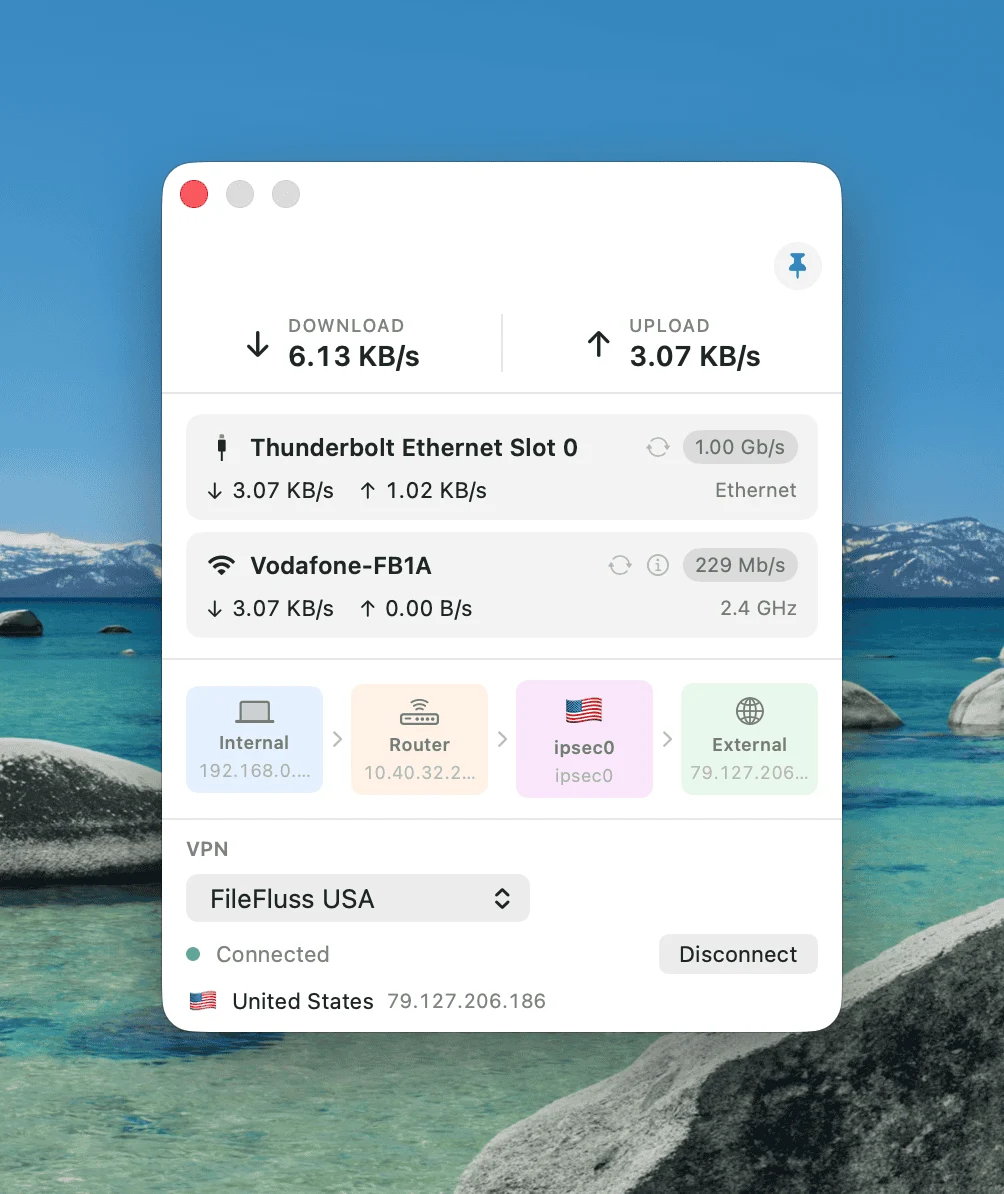
- When the connection succeeds, the status dot turns green and the popover shows the exit country flag, public IP, and tunnel IP.
Disconnect
- Click Disconnect to bring the tunnel down.
- You can also switch to another profile, which disconnects the current one first.
- If auto-reconnect is enabled, NetFluss retries dropped connections with exponential backoff.
Credential security
VPN credentials are stored in the macOS Keychain, and configuration files are stored with 0600 permissions. Never share your Keychain access or config files. Profile metadata is stored as JSON in ~/Library/Application Support/Netfluss/VPN/profiles.json.
Popover controls
The popover keeps the active VPN state visible without opening a full settings window. You can switch profiles, choose a server endpoint, and connect or disconnect from the same compact control surface.
When a VPN is active, the popover shows:
- Profile picker so you can switch between imported VPN profiles
- Server picker when a profile contains multiple endpoints
- Connect or Disconnect button for the current profile
- Live status dot that reflects idle, connecting, connected, reconnecting, disconnecting, or failed states
- Exit country flag and country name after the tunnel comes up
- Public IP address for the current exit node
- Tunnel IP address assigned to the VPN interface
NetFluss refreshes the public IP immediately after connect and checks again shortly after, which helps confirm that traffic is leaving through the VPN you selected.
Per-profile options
Each VPN profile includes controls for connection behavior and organization, so you can tune one profile without changing the rest.
- Rename and reorder profiles to keep frequently used connections at the top
- Auto-reconnect to retry dropped connections with backoff intervals of
2 → 4 → 8 → 16 → 30 → 30seconds, up to 10 retries - Connect on launch to start one selected profile automatically when NetFluss opens; only one profile can use this option at a time, and startup connection is deferred by 3 seconds
- Custom DNS preset to apply DNS servers while connected and restore your original resolvers on disconnect
A successful connection resets the auto-reconnect retry count. A deliberate disconnect also clears the retry cycle, so NetFluss does not try to reconnect after you turn a tunnel off yourself.
VPN settings pane
The VPN settings pane is where you manage imported profiles, connection behavior, and diagnostics.
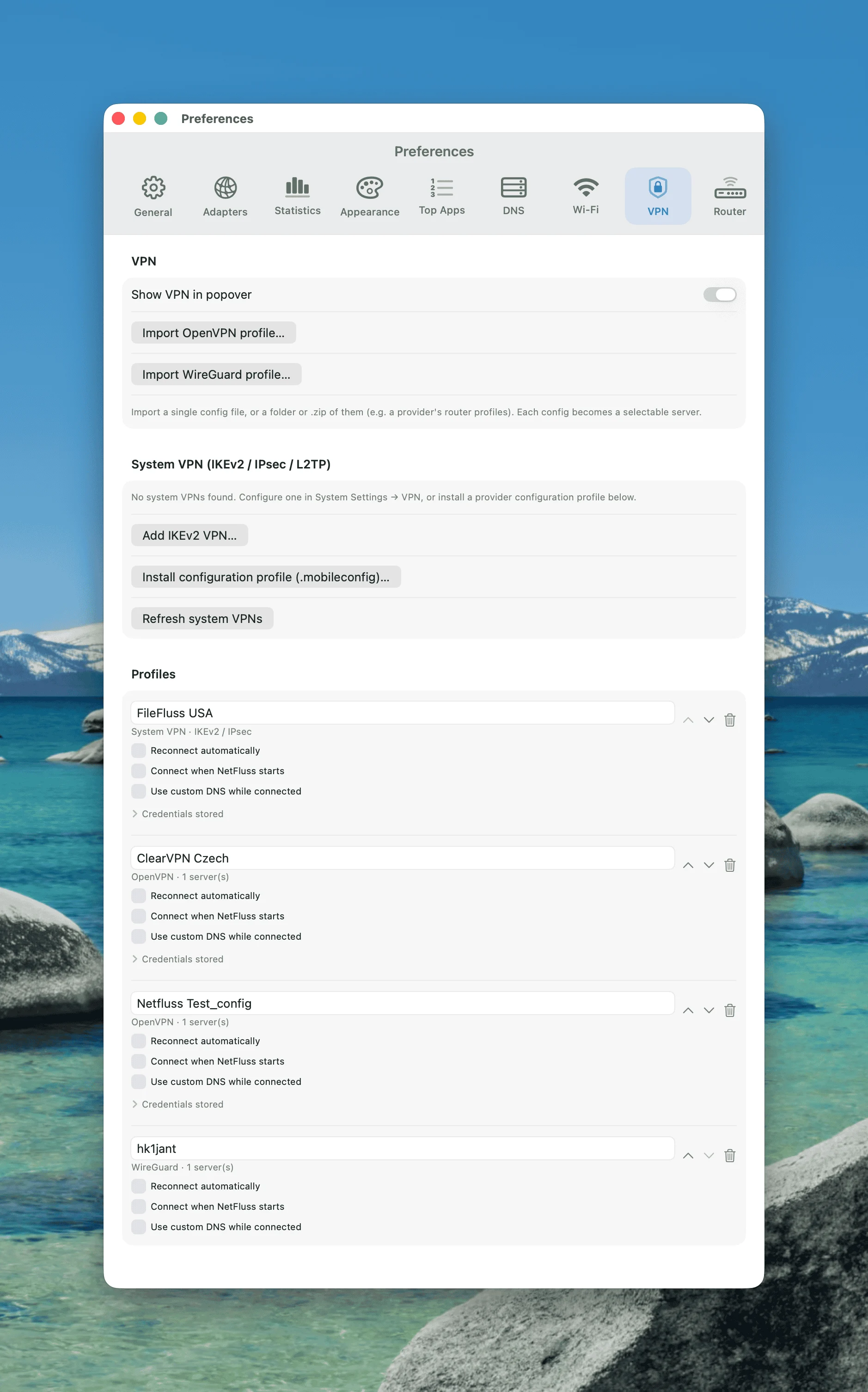
From Preferences → VPN, you can review all imported profiles in one list, import new configs, delete profiles you no longer use, and adjust per-profile options such as server selection, auto-reconnect, connect-on-launch, credentials, and DNS behavior.
This pane also gives you access to VPN diagnostics, which is useful when a profile imports correctly but fails during connection.
VPN diagnostics log
NetFluss writes a VPN diagnostics log to ~/Library/Application Support/Netfluss/VPN/diagnostics.log. The log is capped at 256 KB so it stays small enough to inspect and share during troubleshooting.
Use the diagnostics log when a connection fails, loops in reconnecting, or behaves differently than your provider's client. The log captures app and system details plus VPN tool output that can help identify whether the problem is in the profile, credentials, helper, or underlying VPN backend.
You can open Preferences → VPN → VPN Diagnostics to:
- Copy to Clipboard
- Reveal in Finder
- Clear the current log
Native system VPN support
NetFluss can also display and control VPNs you already configured in macOS System Settings or installed through .mobileconfig profiles. That gives you a single menu bar view for both imported NetFluss VPN profiles and native system VPN connections.
For native system VPNs, NetFluss uses the macOS scutil --nc commands to list, start, and stop available connections.
One connection at a time
Only one VPN profile can be connected at a time. Connecting a new profile disconnects the current one.