
NetFluss overview
Monitor real-time network rates, manage Wi-Fi, connect to VPNs, and track data usage — all from your macOS menu bar with NetFluss.
App overview
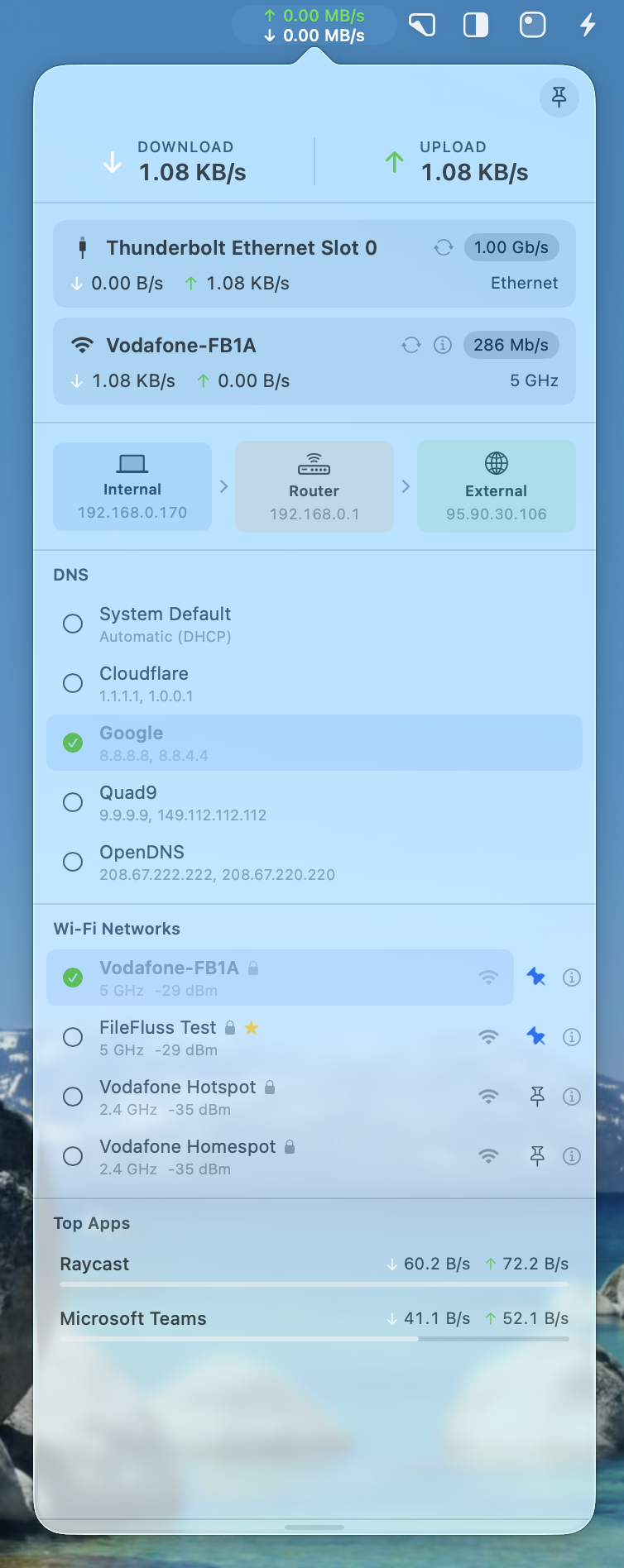
NetFluss runs in your macOS menu bar and shows real-time upload and download rates across all active network adapters, plus the apps using the most bandwidth.
Use it to keep an eye on background data usage, confirm that large downloads or uploads are running, and quickly spot unusual network activity without leaving your desktop.
NetFluss supports macOS 13 Ventura or later. The app is notarized and signed with a Developer ID, so macOS Gatekeeper recognizes it as trusted software.
New in NetFluss 2.x
New in NetFluss 2.x — major additions since version 2.0:
- Wi-Fi Manager (v2.3) — scan, join, and pin Wi-Fi networks from the popover
- VPN Client (v2.4) — connect to OpenVPN, WireGuard, or IKEv2/IPsec VPNs from the menu bar
- Customisable popover sections (v2.3) — drag to reorder and toggle each section
- Data usage summary (v2.4) — see today's and this month's data totals at a glance
- Lower energy impact (v2.4) — smarter sampling keeps battery use minimal
- OPNsense router monitoring (v2.2) — alongside Fritz!Box, UniFi, and OpenWrt
- Multi-language support (v2.2) — English, German, Simplified and Traditional Chinese
- Pane-based Preferences (v2.2) — a cleaner, organised preferences window
Wi-Fi Manager
Scan, join, and pin Wi-Fi networks directly from the NetFluss popover — no need to open System Settings.
VPN Client
Import OpenVPN, WireGuard, or IKEv2/IPsec profiles and connect from the menu bar — no separate provider app required.
What NetFluss shows
NetFluss focuses on low-friction, always-available network visibility in the menu bar:
- Live upload and download rates for your active network adapters, updated in real time.
- Per-app bandwidth usage, so you can see which processes consume the most data.
- Bandwidth Statistics window, with 1H, 24H, 7D, 30D, and 1Y ranges, separate upload and download timelines, plus top adapters and top apps over time; NetFluss only starts collecting these statistics when you enable them, and statistics collection stays off by default.
- Built-in Speed Test, launched from the menu bar icon context menu, using M-Lab and Cloudflare test providers, with a dedicated Speed Test window and local Speed Test History so you can compare results over time.
- Connection Flow View, showing the path from your Mac through the router and any active VPN tunnel to the internet, with an optional IP display and VPN exit country flag.
- Wi‑Fi detail popover, with Wi‑Fi standard, security, channel and width, signal and noise values, and quick ESSID/BSSID copy plus transmit rate.
- Grace periods for adapters and Top Apps, so brief changes do not cause card flicker and the top-apps list stays stable while you watch it.
- DNS Switcher in the popover, with one-click switching between Cloudflare, Google, Quad9, OpenDNS, and your own custom DNS presets (prompts for your admin password and lets you toggle and reorder presets in Preferences → DNS Switcher).
- Top Apps app filtering, so you can hide noisy background processes from the Top Apps list via Preferences → Top Apps → "Apps to Hide", based on processes that used bandwidth in the last 60 seconds.
- Flexible menu bar layout and styles, including a fixed-width speed display so other menu bar icons do not jump when rates change units, additional styles such as Standard, Unified pill, Dashboard, and Icon, and more granular color controls for upload and download arrows and numbers.
- Reliable External IP display, backed by ipwho.is with api.ipify.org as a fallback to keep your external address and country flag accurate.
- IPv4/IPv6 preference for External IP, letting you choose whether NetFluss shows your external IPv4 or IPv6 address in Preferences → Appearance → External IP.
- Fritz!Box Bandwidth Monitoring (experimental), which reads total WAN upload and download rates from your Fritz!Box router via the official TR-064 API (no authentication for bandwidth data) and shows them in the NetFluss popover with progress bars relative to your line speed; enable this in Preferences → Fritz!Box Bandwidth and, if needed, change the router address (default:
fritz.box). - UniFi and OpenWrt monitoring, which connects to your local UniFi controller or OpenWrt router with authentication to read WAN bandwidth metrics and show them alongside your Mac traffic in the NetFluss popover; NetFluss stores the required credentials securely in your Apple Keychain.
- At-a-glance status without opening Activity Monitor or a full network tool, with quick access to Bandwidth Statistics and Speed Test from the right-click context menu on the NetFluss menu bar icon.
- Wi-Fi manager (v2.3) — scan, join, and pin Wi-Fi networks directly from the popover. See the Wi-Fi Manager guide for details.
- Built-in VPN client (v2.4) — import OpenVPN, WireGuard, or IKEv2/IPsec profiles and connect from the popover. See the VPN Client guide for details.
NetFluss keeps UniFi and OpenWrt credentials only in your local Apple Keychain and uses them solely to communicate with your local controller or router.
You control when to open the detailed view from the menu bar, keeping your desktop uncluttered while still having network insights a click away.
Getting started
Install NetFluss either by downloading the latest GitHub release or by using the Homebrew cask. Both options install the same signed and notarized app.
Download the latest release
Go to the NetFluss GitHub Releases page and download the latest NetFluss-<version>.zip archive.
Unzip and move the app
Unzip the downloaded file, then drag NetFluss.app into your /Applications folder so it is available for all users on your Mac.
Open NetFluss
Launch NetFluss.app from /Applications. After it starts, look for the NetFluss icon in your menu bar to confirm it is running.
Install via Homebrew cask
Run the following command in Terminal to install NetFluss:
brew install --cask rana-gmbh/netfluss/netfluss
Homebrew downloads the latest release and places NetFluss.app into your /Applications folder.
Start the app
Open NetFluss.app from /Applications or search for "NetFluss" with Spotlight. After launch, confirm the NetFluss icon appears in your menu bar and shows live network rates.